

Extra tab entries are stored on the shipment stop. Selecting a saved address
stores the address id plus a snapshot, but manual edits do not update the
master address.
Where to configure it
Use two configuration screens:- Project configuration > Fields: manage the available project address types, such as
pickup,delivery,customs, orpapers. - Project configuration > General settings: configure which stop types get which extra tabs in the Stop Location Tabs card.
Address types
Address types back the extraction stop type options, tab configuration, and the address picker filter. Only active project address types can be used for new or changed extra stop-location entries. Address types cannot be deleted from this screen for now; disable them to prevent new assignments. Each address type has a stablename, such as pickup or cross_dock, and an optional display label. The stable name is the value used in stop type, Stop Location Tabs stop_type, tab address_type, business rules, imports, order JSON, and publish payloads. The label is presentation-only.
Changing a label does not rewrite stored stops or integration payloads. Shipment detail, shipment inspector summaries, self-learning feedback field locations, and the order overview show the configured label when one exists, then fall back to a formatted stable name.
Address types also have an Extractable setting. Turn it off for manual-only stop types that operators may add or select themselves, but that the extraction pipeline should not infer from an email or document. Manual-only address types stay active for shipment editing, stop validation, business rules, defaults, order JSON, and publish payloads.

Stop Location Tabs rules
Each rule starts from a source stop type and defines the extra tabs that should appear for stops of that type.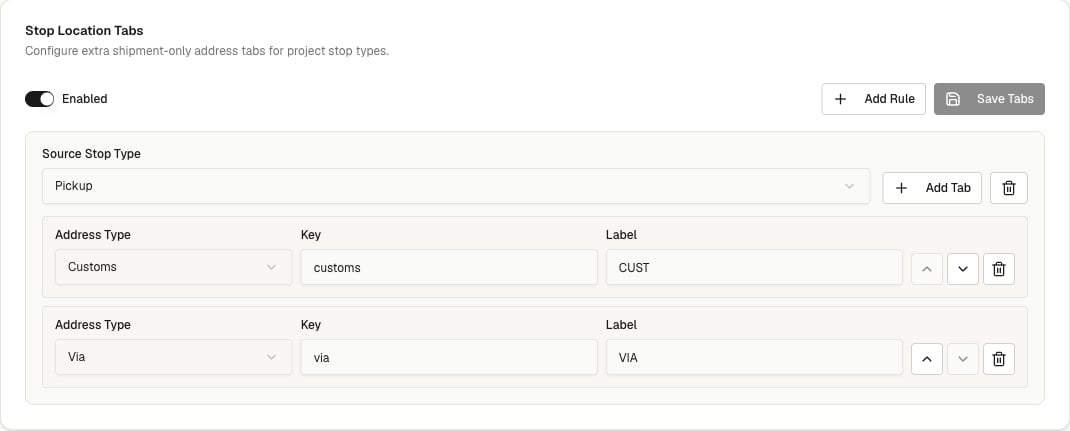
key is the stable machine key. Keep it lowercase and stable after shipments have data. Renaming the key creates a different tab from the data model’s point of view.
Shipment editing behavior
When a shipment stop matches a configured rule, the stop header shows a base tab and the configured extra tabs.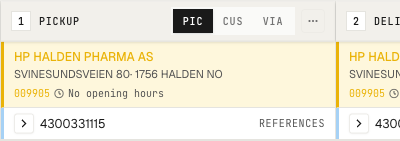
Manual save mode
Projects can disable shipment auto-save in Project configuration > General settings with the Shipment Editing card. The setting is stored on the project as:true, shipment edits auto-save by default and users can still turn auto-save off for their current page session. When it is false, auto-save is disabled for every user in the project and the shipment footer shows the manual Save action.
New stops, goods lines, and item lines are added locally, so their configured fields can be filled before the next manual save or auto-save round trip.
If a user leaves a shipment with unsaved changes, Vectrix asks whether to Save and leave, Leave without saving, or Cancel. Sending a shipment to the TMS always saves pending edits first, even when manual save mode is enabled.
Each extra tab has:
- an address picker filtered by the tab’s
address_type - the same stop field layout as ordinary stops
- shipment-only values for fields edited on that tab
address_id- snapshot fields such as
name,address_line,postal_code,city, andcountry_code - matching values in
fieldswhere they align with configured stop fields
Copy and paste active tabs
The stop action menu can copy the currently selected tab on a stop and paste it into the currently selected tab on another stop. This is a shipment-page clipboard, not the operating system clipboard, and it resets when the page reloads or the user navigates away. Use Copy current tab on the source stop, switch the target stop to the tab that should receive the data, then use Paste into current tab. Paste is disabled when the shipment is read-only, a save is in progress, or nothing has been copied. Copy/paste supports both the base stop tab and configured extra location tabs:- Base tab to base tab copies editable configured stop fields and address snapshot fields, but keeps the target stop identity and type.
- Base tab to an extra location tab writes matching address snapshot fields and configured stop fields into that tab’s
location_entriesrow. - Extra location tab to another extra location tab creates or updates the target row while keeping the target tab’s
tab_key,address_type, andsort_order. - Extra location tab to base tab copies matching configured stop fields and address snapshot fields into the target stop.
address_id only if the linked address has the target stop type. Extra location tab targets keep address_id only if the linked address has the target tab’s address_type. When the link is not valid, only the snapshot fields are pasted and the target link is cleared.
Pasted values are treated as manual edits. Structural fields such as id, shipment_id, stop_number, type, timestamps, and deleted state are never copied, and extraction evidence or confidence is not carried over.
Field model
Extra tabs use the normal stop field configuration. Built-in address fields are mirrored onto top-level snapshot fields. Other configured stop fields, including list fields, are stored infields.
fields for configured stop fields that do not have a direct address column.
Order JSON and publish payloads
Order GET and order-level publishing use the same hydrated order shape. Each shipment contains stops, and each stop containslocation_entries.
settings.pubsub.publish_level:
orders: publishes the full hydrated order payload, includingshipments[].stops[].location_entries.shipments: publishes the hydrated shipment payload, includingstops[].location_entries.
Business rule paths
The rule catalog exposes configured stop-location tabs as stop-scoped fields. Use these fields when a rule needs to read the base stop address or create and update an extra stop-location tab entry. The canonical rule form reads the base stop address and writes the configured extra tab by tab key:Rule builder fields
In the visual rule builder, choose Stop scope before selecting stop-location tab fields.- Base Address is a condition/source field. It maps to
address_idand can be used to check the linked address on the base stop. - Base Address is not available as an action target, because rules cannot write the base stop address through this path.
- Extra tab address targets, such as Customs · Address or Papers · Address, map to
location_entries.<tabKey>.address_id. - Extra tab address targets use the tab’s configured
address_typeto filter the address picker. - The selected address value is stored as the Convex address id in the rule.
- Snapshot fields, such as Customs · Name, Customs · Street, Customs · City, and Customs · Reference, map to direct fields on the tab entry.
- Configured stop fields that do not have a direct snapshot column map to
location_entries.<tabKey>.fields.<fieldName>.
Extra tabs are targeted by tab key, not by label or address type. If the label
changes from “Customs” to “Customs desk” but the key remains
customs, the
rule path stays the same.Supported paths
Use these paths in stop rules:stop. prefix:
Validation and execution
Rule validation accepts only configured tab keys. For example,location_entries.customs.address_id is valid only when the project configuration contains a tab with key customs.
Rules can create or update the tab entry for the referenced tab key. During dry-run, a missing entry is materialized so the diff can show the created or updated path, such as:
location_entries.<tabKey>.address_id, the runtime stores the selected address id and hydrates the address snapshot fields before persisting. Existing manual values in fields are preserved unless the rule writes those fields directly.
Operational notes
- Missing or disabled config leaves the shipment screen unchanged.
- Disabled address types cannot be used for changed entries.
- Manual-only address types are hidden from extraction stop type options, but remain valid for manual edits and configured automation.
- Unchanged existing entries can still be saved if the address type is later disabled.
- Deleted linked addresses are ignored during hydration.
- Extra tab entries live in Convex table
stop_location_entries.